We posted some new EYESY modes on Patch Storage:

6 Likes
brilliant! so glad to see the Eyesy is a going concern!
1 Like
New Mode: Randomizer - O±TR !
Randomly pick and load other modes. It’s a ‘super’ or ‘meta’ mode that passes randomized knob values and Trigger settings into the randomly chosen mode. It has the bonus of putting ‘trails’ on every mode! This mode is pretty automatic in that you don’t need to do much besides set the knobs and send audio to the EYESY.
IMPORTANT: This mode requires at least two other ‘regular’ modes to be in the ‘Python’ folder. A minimum of two regular modes are required because this mode will not call itself nor will it call the same mode twice in a row.
- Knob1 - sets how frequently ‘knob’ values are randomized
- Knob2 - sets how frequently the audio trigger* is set - useful for modes that use the audio_trig to resize, reposition, rotate, etc., elements
- Knob3 - sets how frequently the a new mode is chosen
- Knob4 - sets the opacity of the Trails
- Knob5 - not used!
https://patchstorage.com/randomizer-o-tr/


4 Likes
Looks promising! I guess I could send Knob3=127, immediatly followed by Knob3=0, to trigger a new mode manually, by push of a button on my midi pedal?
I started arranging scenes for our songs, so they will match with the songs (more or sometimes less), but this patch would allow to have something cool, for new songs, jams or whatever. AUTOMAGICALLY 
Here are two new oscilloscope modes that use bezier curves:


The bezier curve algorithm interpolates the points generated by the amplitude of the audio. This means that the higher frequencies in the audio may be ‘smoothed out’ by the curves.
1 Like
We updated the S - Oscilloscope mode with the following improvements:
- Rounded joints at scope vertexes
- Scope line thickness (Knob1) can now be ~12x thicker
- Shadow color shifts from black (Knob3 turned to left) to the background color (Knob3 turned to right)
Since this is an update to an existing mode, I will link to the repository location of the modes’ main.py file rather than create a PatchStorage page for it. Please feel to download the main.py file using the download button at the top right above the code:
https://github.com/critterandguitari/EYESY_Modes_OSv3/blob/main/S%20-%20Oscilloscope/main.py
…and then use the EYESY’s Editor to replace the original main.py in S - Oscilloscope folder with the new one.
You could also copy the code from the GitHub link and, using the Editor, paste it into the main.py file and save it…no need to download/upload anything!

New Mode: T - MIDI GRID

Display incoming MIDI Notes in a 16×8 grid – all 128 MIDI notes. If the EYESY receives a MIDI note, it will show up in its respective grid location.
Knob1 – MIDI Data: number, name, number & name, blank
Knob2 – Grid Settings: off, square –> circle, off
Knob3 – Feedback setting. All the way left is ‘off’
Knob4 – Foreground color
Knob5 – Background color
1 Like
New Mode: S - Audio Printer
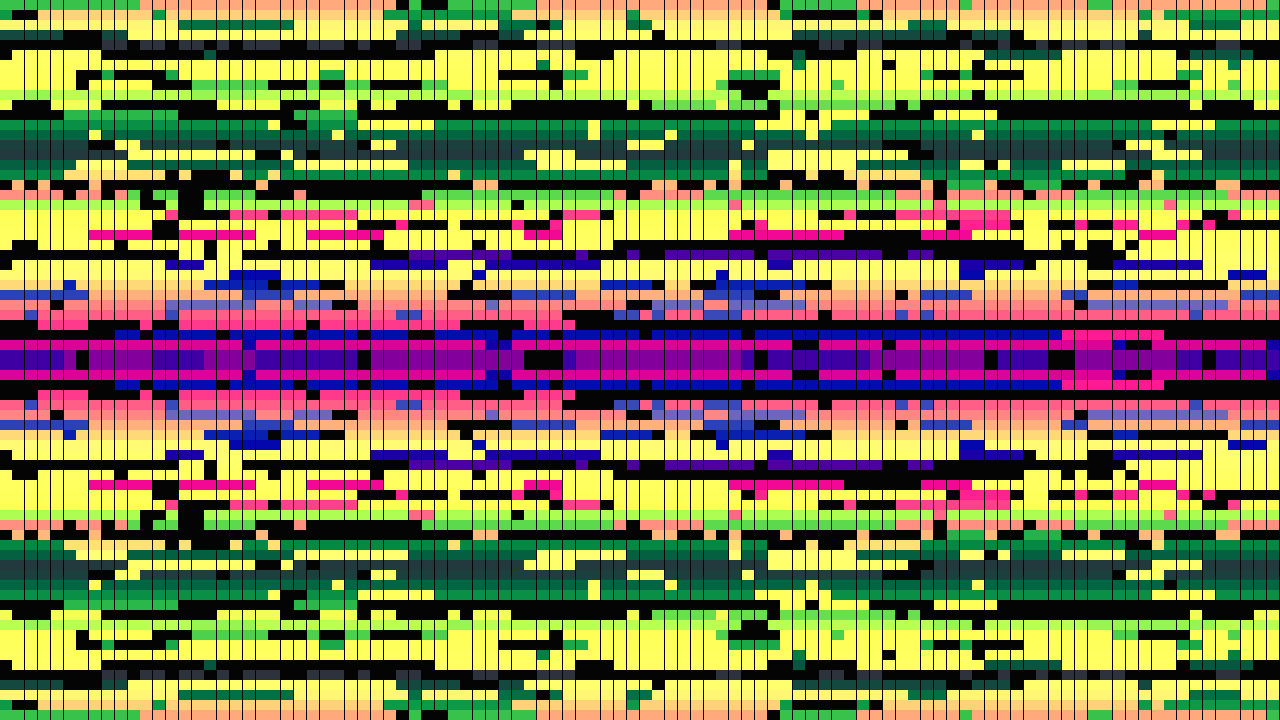

Pixelated Oscilloscope History! This mode keeps a record of the last 72 frames of audio input buffer. If an individual buffer value went above the ‘threshold’ (set by Knob3), it will show up as a filled square and scroll across the screen. Shift the record left & right with Knob2. Control the scroll direction with Knob1. Don’t forget to hit ‘Persist’ now and then!
Knob1 - Scroll direction & quantity (scans up, scans down, up/down)
Knob2 - Horizontal shift amount
Knob3 - Audio level Threshold (quiet - loud)
Knob4 - Foreground color
Knob5 - Background color
3 Likes
New Mode: U - Timer


Need a countdown timer to help with creative goals like “I want to lay down a bunch of tracks in the next 30 minutes!” or “I will play drums for 21 minutes and 42 seconds!” or “Let’s see what I can make in happen in the studio in 11 minutes!!”?….then this EYESY mode is what you’re looking for! It combines a timer function with motivational text (lol) to get you in the ‘zone’!
Set the duration using three knobs for hours, minutes, and seconds. The trigger button (bottom right) starts and stops the timer. If the timer is set for more than 45 seconds, randomly selected phrases/words move across the screen. The screen will flash between black and white when the remaining time is less than 30 seconds.
You can edit the list of phrases to suit your style. Turning ‘Persist’ on will build up interesting textures from the scrolling words!
Knob1 – Hours (0-23)
Knob2 – Minutes (0-59)
Knob3 – Seconds (0-59)
Knob4 – Foreground color
Knob5 – Background color
2 Likes


For anyone interested in making modes that use both the left & right channels of the EYESY’s audio input, here is a demo mode that shows use of the eyesy.audio_in[] (left) and eyesy.audio_in_r[] (right) lists.
New Mode: S - Amp Color
Turn audio amplitude into color. The bars represent one of the 100 positions in the audio input array. The color of the bars is audio amplitude for each position. Knob1 sets the history length for the audio input: max left is ‘no’ history (displays the current audio) and max right averages the amplitude over the last 20 values (this looks the smoothest, but not as responsive as max right). Use Knob3 to set the vertical position to display either horizontal or vertical bars or a mix of both.
Knob1 – Audio ‘history’ length – turn it up for ‘smoother’ colors
Knob2 – Bar width
Knob3 – Y position: switches between horizontal & vertical orientation
Knob4 – [not used]
Knob5 – Background color

New Mode: S - Boids

‘Boids’ bounce off a bar-based oscilloscope. Sometimes they sneak past the boundaries and get stuck/wiggle jiggle around where they shouldn’t be – it’s part of the fun!
The boid color is set by the color palette selector in OSv3 (Shift+ Mode Forward / Backward).
If the foreground and background are set to the same color, it will look like the boids are bouncing off ‘invisible’ features.
Knob1 – Boid size
Knob2 – Bar width
Knob3 – Bar style (filled/unfilled, curved/90-degree corners)
Knob4 – Foreground color
Knob5 – Background color
New Mode: S - Amp Color - Circles

Turn audio amplitude into color. Every ‘trigger’ event places five nested circle groups on the screen in random positions. A nested circle group may have up to 50 circles. Each circle within the group represents one of the first 50 positions in the audio input array. The color of the circle is mapped to the audio amplitude for each position.
Knob1 sets the history length for the audio input: max left is ‘no’ history (displays the current audio) and max right averages the amplitude over the last 20 values (this looks the smoothest, but not as responsive as max right).
Things get fun when you set MIDI clock or notes as the trigger source - this will pick new locations and sizes of the circle groups. (The ‘trigger’ button works too for manual input.)
Knob1 - Audio History
Knob2 - Rotation Direction & Rate
Knob3 - Nested Circle Count
Knob4 - LFO Step Size for nest angle offset
Knob5 - background color
Trigger - picks five new circle group sizes & positions
Three new modes:
S – Amp Color – 5gon Outlines

S – Amp Color – 5gon Filled

S – Amp Color – Rectangles

New Mode: T - MIDI Note Printer


It’s like the S - Audio Printer above, but for MIDI notes: incoming MIDI notes displayed left to right (0-127) and scroll up or down (or both) depending on Knob1’s setting.
New Mode: T - Woven Feedback
Triggers create new ‘weavings’ with filled/outlined rectangles. Feedback controls add layers that zoom towards the vanishing point - turn on Persist for this!


Knob1 - Rectangle filled/outline thickness
Knob2 - Size of feedback screen
Knob3 - Opacity of feedback screen (turn on Persist for best viewing!)
Knob4 - Foreground color
Knob5 - Background color
Trigger - New rotations for rectangles
Two new modes: S - Nested Ellipses - Filled & S - Nested Ellipses - Outlines
Audio amplitude controls horizontal radii of nested ellipses. Knob1 sets the history length for the audio input: max. left is ‘no’ history (displays the current audio) and max. right averages the amplitude over the last 20 values.


New Modes:
- T - Tiles - Outlines
- T - Tiles - Filled

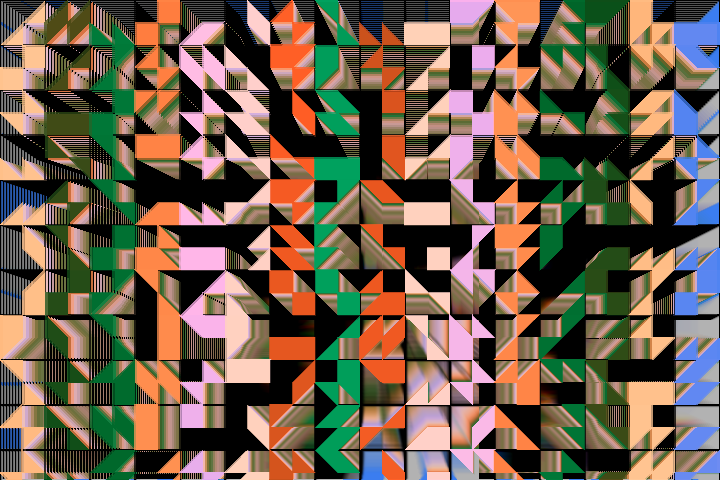
Triggers create new arrangements from 19 tile styles. Feedback controls add layers that zoom towards the vanishing point - turn on Persist for this!
The Outlined version draws tiles with an outline only. The Filled version draws solid tiles.
Knob1 - Number of displayed tiles
Knob2 - Size of feedback screen
Knob3 - Opacity of feedback screen (turn on Persist for best viewing!)
Knob4 - Foreground Color
Knob5 - Background Color
Trigger - Generates new tile arrangements
I hope its ok for me to post in here too? I’ve got a new mode up on Patch Storage which I created with Chat GPT. This one creates glowing fireflies which float around the screen and dynamically react to incoming audio.
This is meant to be a relaxing mode for more ambient style music, and also looks nice with persist toggled on.
To be honest, I feel like a lot of the Eyesy modes are very busy and hectic. This is great for certain types of music, or things with more of a beat - but I’m trying to develop some modes (with Chat GPT) that are more appropriate for music thats slower or doesn’t use lots of beats/triggers. Also wondering if C&G take this kind of music into consideration with the modes? Perhaps @chrisk can comment? Not meant as a criticism - the official modes are wonderful!
1 Like